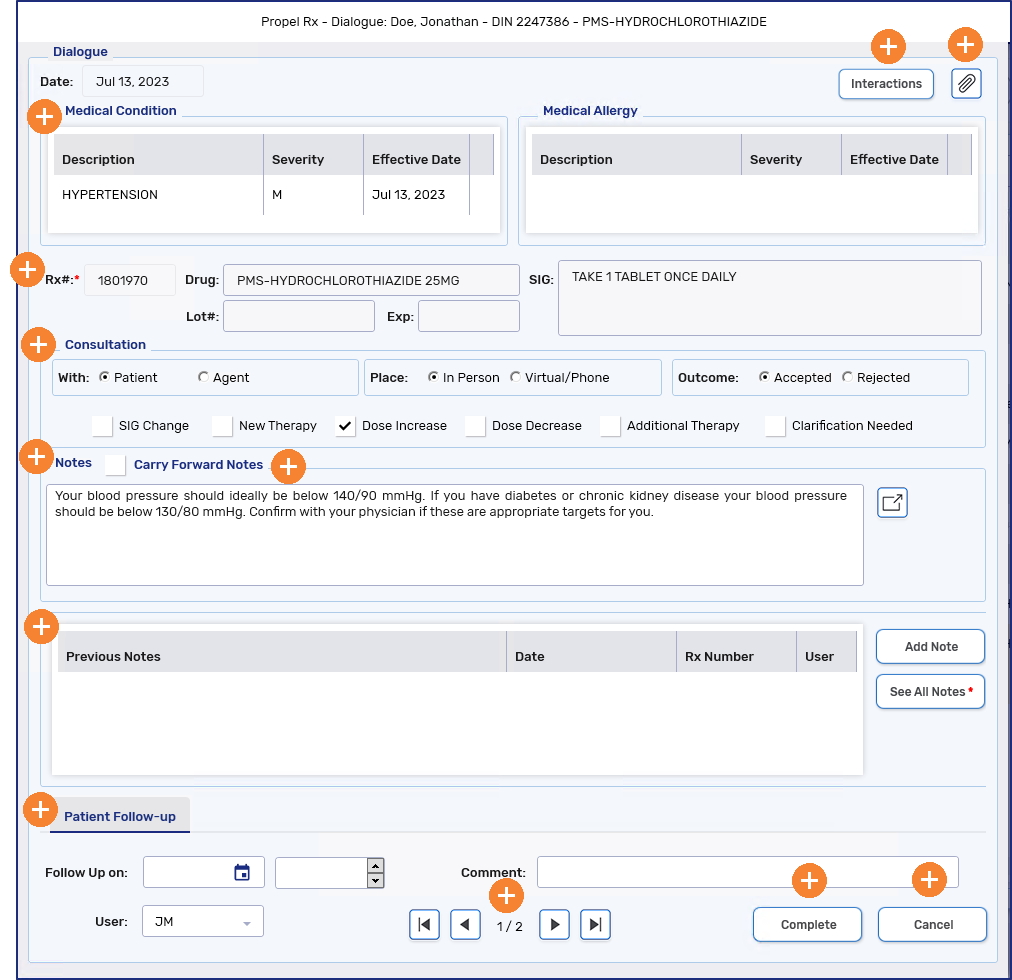
Dialogue from the Dialogue Dashboard
Completing Dialogue in the Dialogue dashboard can be done using two methods:
-
Completing the dialogue - allows you to electronic record your dialogue or patient counseling notes.
Patient counseling rejection should be recorded with this method.
-
Not required - removes the prescription from the Dialogue dashboard without electronically recording your dialogue or patient counseling notes.
For more information on the different methods, use the dropdowns below.
 Completing Dialogue
When patient counseling is completed, if the prescription is displayed in the Dialogue dashboard, you can electronically record the patient counseling notes here.
To complete dialogue:
-
From the Workbench, select the Dialogue tile.
-
Highlight the prescription(s) that you need to record dialogue notes electronically.
-
Select Complete. The Dialogue window appears.
For detailed information about the Dialogue window, see Dialogue Window Overview below.
-
Enter or select information in the following sections:
-
Consultation
-
Notes
-
Patient Follow-up
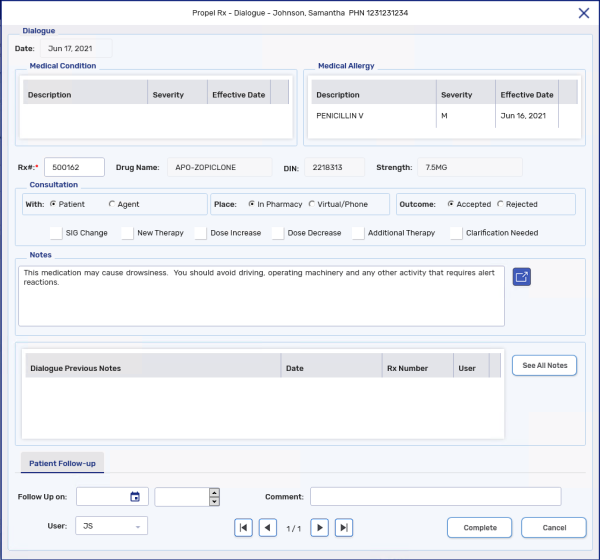
When entering information in the Notes field, select the expander icon
 to open the Pharmacist Comments window. Selecting one of these comments auto-inserts common information discussed during patient counseling.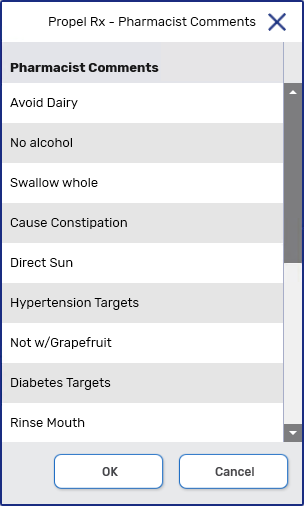
-
-
Select Complete. The Dialogue window closes and the prescription is removed from the Dialogue dashboard.
The dialogue notes can be viewed from the patient's Clinical tab. For more information, see Clinical Tab Dialogue.
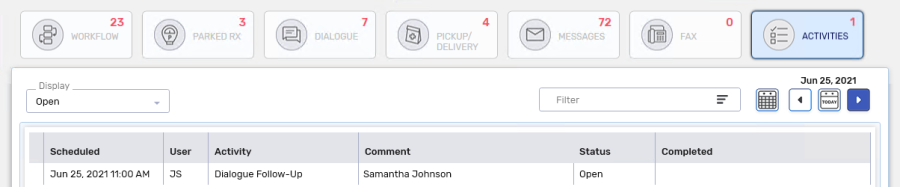
If a follow-up was scheduled, the follow-up is scheduled in the Activities tile for the day specified.
Dialogue not required
If dialogue or patient counseling it not required for a prescription on the Dialogue dashboard, highlight the prescription and select Not Required. The prescription is removed from the Dialogue dashboard.
Dialogue Window Overview
To learn more about the Dialogue window, select the expander icons  in the image below.